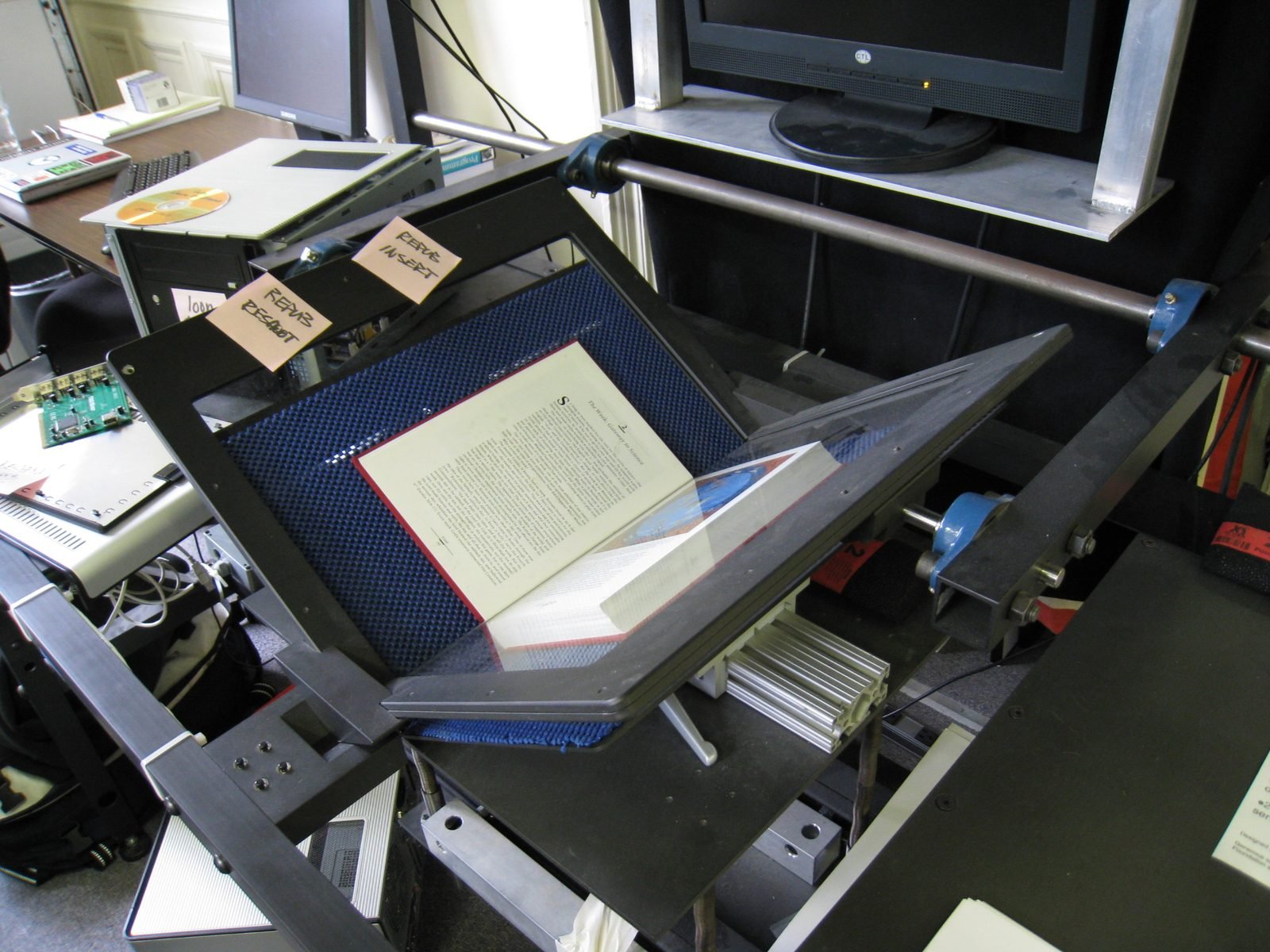
Have you ever needed to copy text from a photo, a scanned document, or a screenshot — only to realize you'd have to retype it all by hand? Optical Character Recognition (OCR) — also called text recognition — solves exactly this problem. It extracts editable text from images automatically. Here's how it works, and a free tool above if you just want to convert an image right now.
What Is OCR (Text Recognition)?
OCR stands for Optical Character Recognition, commonly just called text recognition or OCR text extraction. It's a technology that converts images containing text — photos, scanned pages, screenshots, PDFs — into actual editable, searchable text. Instead of retyping a document, OCR reads it for you in seconds.
How OCR Works
OCR follows several steps to turn an image into text. First, it analyzes the image to locate areas containing text. Then it examines the shapes of individual characters, comparing them against known letter patterns. Advanced OCR uses AI to recognize words in context, improving accuracy even with imperfect images. Finally, it outputs the recognized text in a format you can copy, edit, and search.
Common Uses for OCR
- Digitizing documents: Convert paper documents into editable digital files
- Extracting text from photos: Pull text from a photo of a sign, receipt, or page
- Screenshots: Copy text from an image where you can't select it normally
- Business cards: Extract contact details into your address book
- Accessibility: Convert printed text to digital for screen readers
- Data entry: Speed up entering information from printed forms
Tips for Best Accuracy
OCR works best with clear, high-quality images. To get the most accurate results:
- Use good lighting with strong contrast between text and background
- Keep the image straight — avoid tilted or rotated text
- Use higher resolution images when possible
- Ensure text is in focus and not blurry
- Standard printed fonts work better than decorative or handwritten text
Limitations of OCR
OCR is impressive but not flawless. Handwriting recognition is much harder than printed text and results vary. Poor image quality, unusual fonts, complex layouts, and low contrast all reduce accuracy. Always proofread OCR output, especially for important documents where errors matter.
Privacy Matters
When choosing an OCR tool, consider privacy. Some tools upload your images to remote servers for processing. Browser-based OCR tools that process images locally on your device offer better privacy, since your sensitive documents never leave your computer. This is especially important for confidential documents like contracts or personal records.